Keep Your Data Safe!

Active@ Disk Image is a disk image software that makes an exact copy of any PC disks (HDD, SSD, USB, CD, DVD, Blu-ray etc.) and stores it into a folder. The disk images may be used for backups, PC upgrades or disk duplication purposes.

In case of computer failure, a backup image may be used to recover your computer system or find & restore any necessary files from within an image.

Active@ Disk Image
Download
v.5.4.2 Size: 12.2 MB

Release Note: v.5.4.2 (Jan 2, 2013) Freeware and Trial packages, Windows 8 supported
Full version history

" Just a note to let you know that after a catastrophic failure of my XP machine, I was able to create a boot disk on my Windows 7 machine and successfully restore the complete drive from a previous backup on an external drive. Great program! Thanks very much. "

Bud Lorch St. Thomas ON

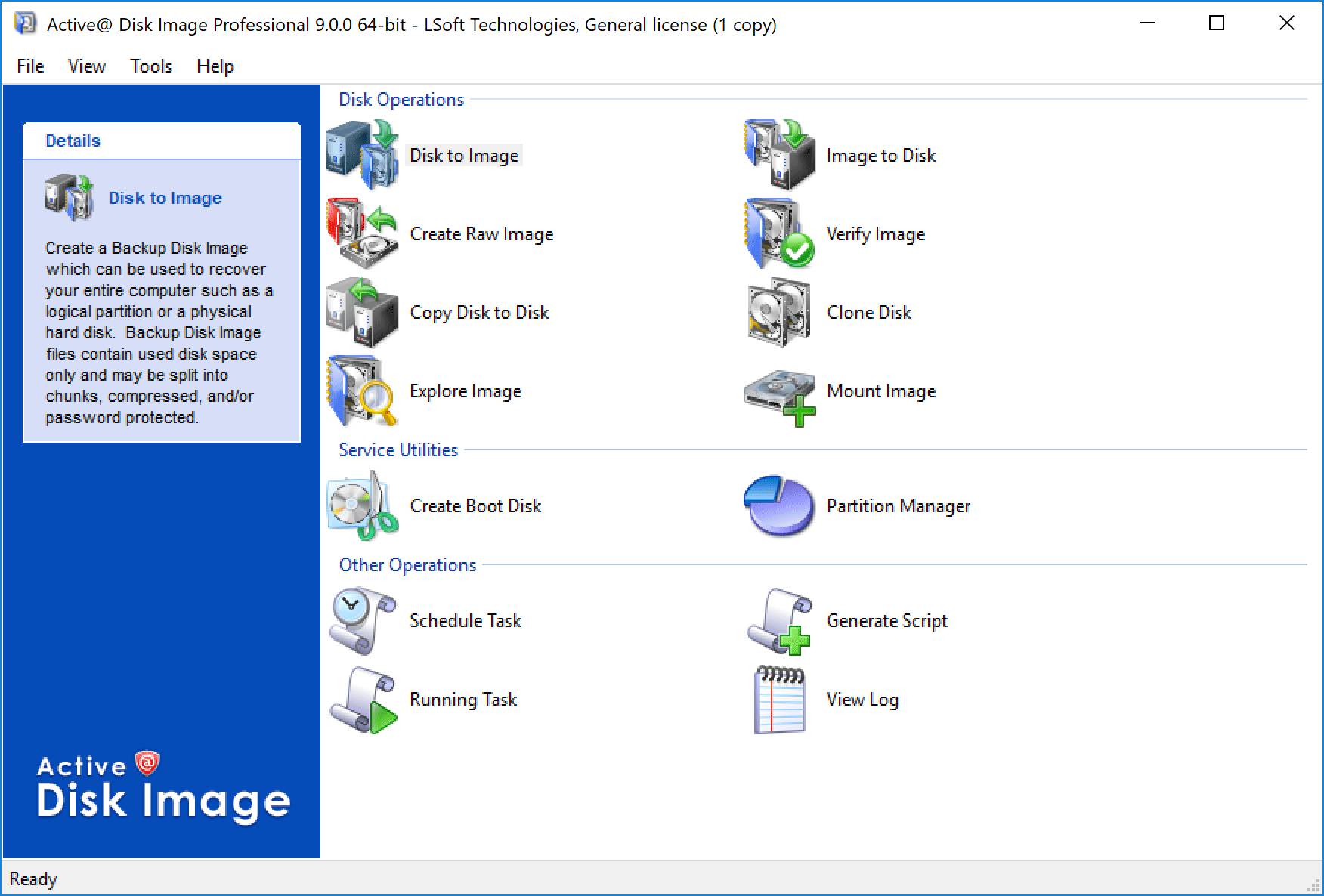
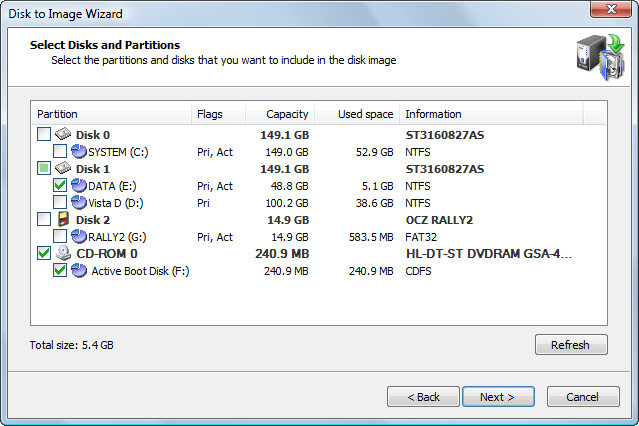
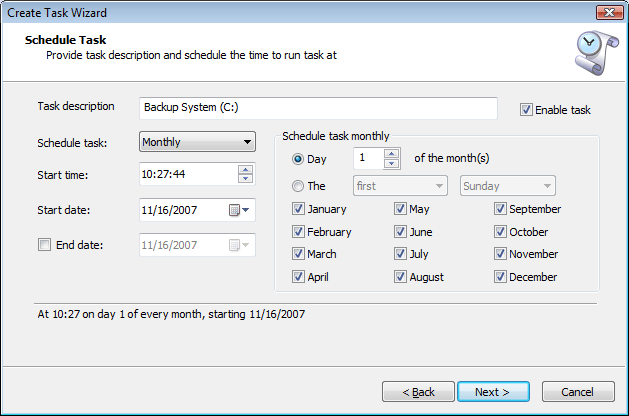
Disk Image software screenshot

Active@ Disk Image Lite Freeware released!

Backup & restore your data for free!
Read more or Download Freeware package.

 
Windows versions supported: Others:
Windows 8 / 7 / Vista / Server 2003 / Server 2008 / XP /
Small Business Server 2011
Old Windows, Linux, FreeBSD, Solaris for PC, etc. can be backed up by Raw Disk Image mode after booting up from Active@ Boot Disk Lite *.
 
    Lite (Freeware) Standard
 
Pro
 
Create Backup Disk Image Create & Restore Disk Image Backup (occupied clusters only) Check For Started ver. disk image software Check for Standard ver. disk image software Check for Pro ver. disk image software
Image Compression by disk image software Image Compression (Normal and High) Check For Started ver. disk image software Check for Standard ver. disk image software Check for Pro ver. disk image software
Bootable Disk. Disk image software Bootable Disk. CD, DVD, USB stick Check for Standard ver. disk image software Check for Pro ver. disk image software
disk image software Rescue Bootable Media Check for Standard ver. disk image software Check for Pro ver. disk image software
Scheduled backups: disk image software Scheduled backups   Check for Standard ver. disk image software Check for Pro ver. disk image software
Create Raw Disk Image by disk image software Create & Restore Raw Disk Image (sector by sector copy)   Check for Standard ver. disk image software Check for Pro ver. disk image software
Windows Servers. Disk image software Windows Servers are supported Check for Pro ver. disk image software
Image Encrypting by disk image software Image Encrypting (AES-128, AES-192, AES-256)     Check for Pro ver. disk image software
disk image software Scripting support Check for Pro ver. disk image software
disk image software E-mail notifications Check for Pro ver. disk image software
Incremental Scheduled backups,disk image software Incremental Scheduled backups     Check for Pro ver. disk image software

More features

New! Active@ Disk Image Blog 

An error appears indicating the CreateSnapshotSet() failed. What should I do?

SQL and Disk Image software

September 28 2012, LSoft support

When trying to image a drive, an error appears indicating the CreateSnapshotSet() failed. How can this error be resolved?

The error basically means that the system doesn't have enough of a buffer to hold all write operations occurring during a backup. You need to increase the area allowed to VSS to buffer such write operations.

On Windows Server operating systems you need to open the properties of one drive, such as C:, and open the Shadow Copies tab. Then select the drive and click Settings:

Now you need to specify No Limit or at least 15% of the drive's size as a limit. Do this for each drive in your system and try to run the backup again.


SQL and Disk Image software

SQL and Disk Image software

September 20 2012, SergeT
a data backup software developer

Can you tell me how Active@ handles SQL databases? Does it shut down SQL and then backup the data files?

No. No stopping SQL Server is required. Active@ Disk Images completes backups "on-the-fly" using Microsoft's built-in helper services, like "SQL Server VSS Writer":

disk backup screenshot

"VSS Writer" service flushes SQL cache critical data back to the HDD, and creates something like "safe restore point", specifically for backup purposes. After that Disk Image starts imaging process.

This avoids SQL service interruption, giving the active SQL users ability to work with a database while backups are in progress.


My experience with Active@ Disk Image

How to protect your data? Disk backup

August 8 2012, RobinZon
a data backup software reviewer

If you, like me, find yourself in a constant struggle, trying to keep your computer under control in terms of starting up and keeping your data safe; you should try Disk Image, a program I recently started using. In short, the name describes what it does.

This software helps create a disk image of your computer, which is basically like a backup of your entire machine (you can choose to save less if you want). What's awesome about this software though is that it comes with more than just the tools to do that. It also comes with a powerful feature called "Boot Disk". But I'll talk about that later on in this… review, I guess?


"A great way to restore computers from unstable states"

How to protect your data? Disk backup

August 2 2012, Michael Findley
a small business owner in the GTA

Hi, my name is Michael Findley and I'm a small business owner in the GTA. Here, I'll be writing a review on a product I have recently needed to use, called Active@ Disk Image, by LSoft Technologies Inc.

To start off, Active@ Disk Image is software designed to deal with anything regarding the copying of disks, making it appropriate for making backups, copies of disks and, with their "Boot Disk" options, a great way to restore computers from unstable states. Although I tried of the software to see how it would work in those situations, this wasn't the reason I purchased Disk Image...


Read more: Disk Image Users Guide &. Sales Questions

1. Product Overview 6 Restoring a Disk Image

Sales Questions

1.1 Overview and List of Features 6.1 Selecting a Disk Image to Restore 1. May I try the software before purchasing it?
1.2 System Requirements 6.2 Selecting a Whole Disk or a Partition 2. How can I get an update to the latest version of Active@ Disk Image?
1.3 Supported File Systems 6.3 Restoring a Partition 3. Do you charge sales/VAT tax?
2. Using Active@ Disk Image 6.4 Restoring a Whole Disk 4. What is the difference between an "update" and an "upgrade"?
2.1 Main Program Window 6.5 Restoring a Raw Disk Image

Technical Questions

2.2 About Disk Image Types 6.6 Burning an ISO Image 1. Does Active@ Disk Image support Windows 2003/2008 Server/SBS (Small Business Server)?
2.3 Working with Basic or Dynamic Disks 6.7 Restoring a Floppy Image 2. How do I make a Rescue bootable CD?
2.4 Incremental and Differential Images 7 Viewing and Restoring Individual Files 3. Can a Backup Disk Image be restored to a disk using another size rather than its original size?
3 Creating a Disk or Partition Image 7.1 Opening an Image in Disk Image Explorer 4. Can a Disk Image be written to CD, DVD or Blu-ray disk?
3.1 Selecting a Backup Type 7.2 Active@ Disk Image Explorer Interface  
3.2 Selecting Disks and Partitions 7.2 Active@ Disk Image Explorer Interface  
3.3 Choosing a Backup Location 7.3 Restoring Individual Files  
3.4 Setting Image Options 8 Clone Disk Wizard  
3.5 Creating Several Images at once 8.1 Selecting a Source Disk or Partition  
3.6 Confirming the Disk Image Details 8.2 Cloning a Partition  
4 Creating a Raw Disk Image 8.3 Cloning a Whole Disk  
4.1 Selecting a Disk or a Partition 9 Copy Disk to Disk Wizard  
4.2 Choosing a Backup Location 9.1 Selecting a Source Disk or Partition  
4.3 Setting Image Options for a Raw Disk Image 9.2 Copying a Partition  
4.4 Confirming the Raw Disk Image Details 9.3 Copying a Whole Disk  
5 Verifying a Disk Image Archive 10 Other Operations  
5.1 Selecting a Backup for Verification 10.1 Viewing the Log File Details  
5.2 Confirming the Verify Details 10.2 Scheduling a Task  
  10.3 Changing Program Settings  
  10.4 Saving Hardware Information  
  11 Troubleshooting  
  11.1 FAQ (Frequently Asked Questions)  
  11.2 Technical Support